Keywords
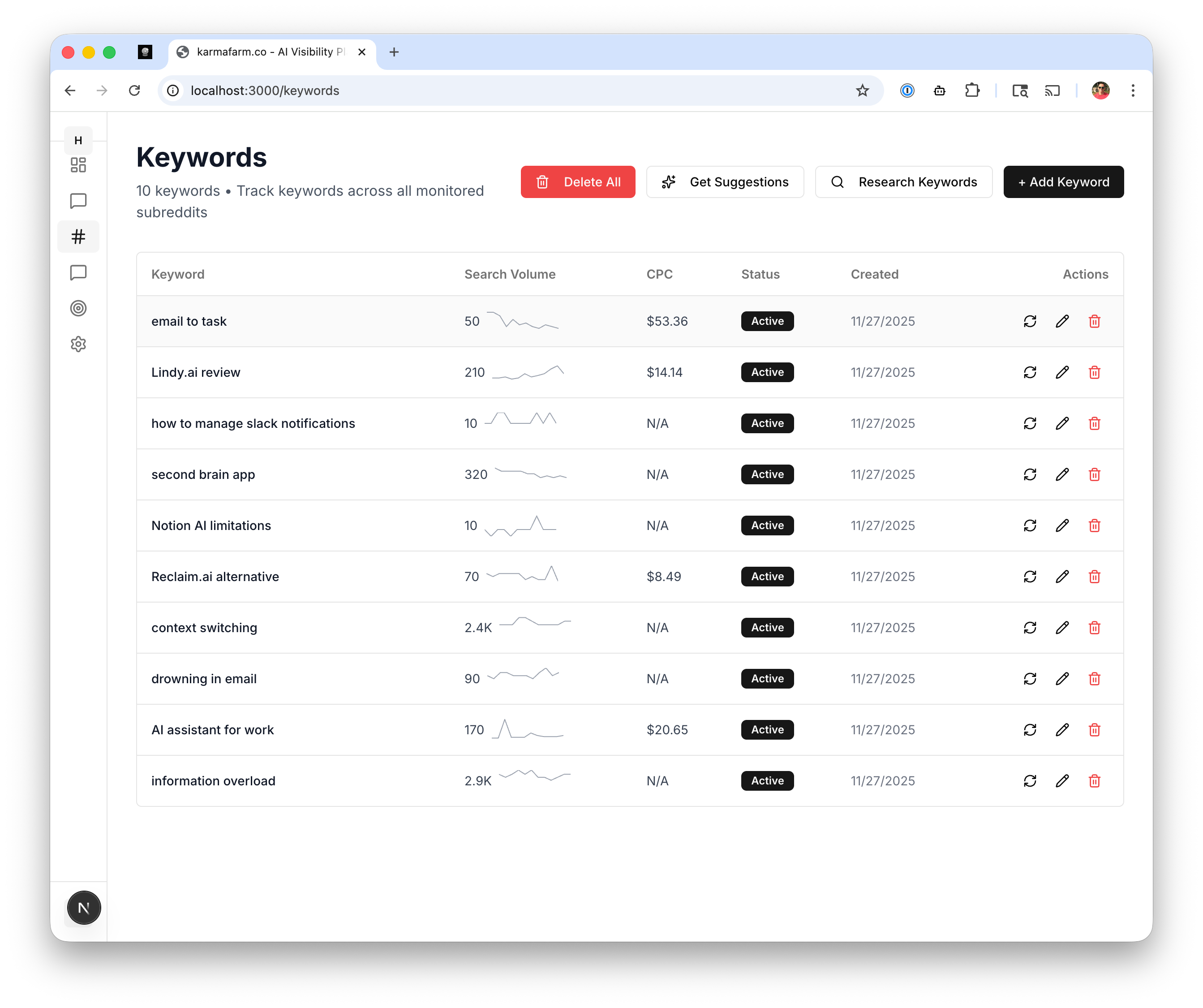
Viewing Keywords
The Keywords page displays all your tracked keywords in a table with:| Column | Description |
|---|---|
| Keyword | The search term being monitored |
| Search Volume | Monthly search volume for this term |
| CPC | Cost-per-click value indicating commercial intent |
| Status | Active or paused |
| Created | When the keyword was added |
| Actions | Edit, refresh, or delete |
Adding Keywords
Click + Add Keyword to add a new keyword:- Enter the keyword phrase
- karmafarm.co will fetch search volume and CPC data
- The keyword starts monitoring immediately
Keyword Ideas
Good keywords to monitor:- Product category: “email management app”, “task automation tool”
- Problem statements: “how to manage slack notifications”, “drowning in email”
- Alternatives: “Notion alternative”, “Reclaim.ai vs”
- Reviews: “Lindy.ai review”, “second brain app”
Get Suggestions
Click Get Suggestions to have AI recommend keywords based on your company profile and target audience.Research Keywords
Click Research Keywords to analyze potential keywords before adding them. This shows:- Search volume trends
- Related keywords
- Competitive landscape
Managing Keywords
Edit a Keyword
Click the pencil icon to modify a keyword’s settings or pause monitoring.Refresh Metrics
Click the refresh icon to update search volume and CPC data.Delete a Keyword
Click the trash icon to remove a keyword from monitoring. Posts already matched to this keyword will remain in your feed.Delete All Keywords
Use Delete All to remove all keywords at once. Use with caution - this cannot be undone.Search Volume & CPC
Search Volume indicates how often people search for this term monthly. Higher volume means more potential visibility. CPC (Cost Per Click) indicates commercial intent. Higher CPC suggests people searching this term are ready to buy. Prioritize keywords with:- Moderate to high search volume
- Higher CPC (indicates buyer intent)
- Direct relevance to your product